AI Search
Search across the whole product that also understands questions, from the header dropdown to a full results page with an AI summary.
One search for the whole product.
BusinessPad holds deals, tasks, processes, documents, counterparties, finance operations, reports and settings. Search covers all of them, from a field in the header and a larger search dialog.
Not every query is a keyword. Some are questions, like «Как создать задачу?». The design lets MagicPad answer those in the same place.
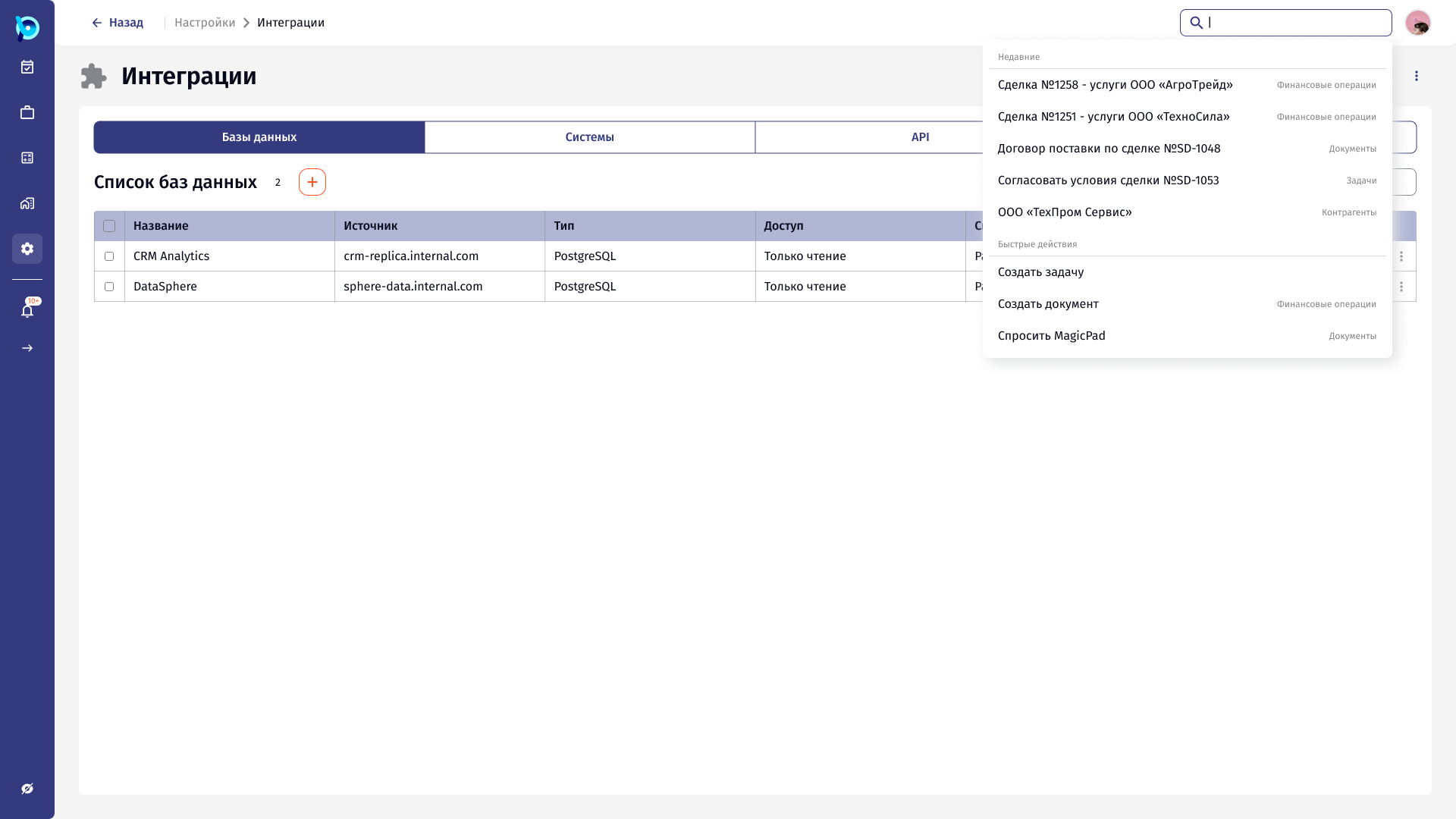
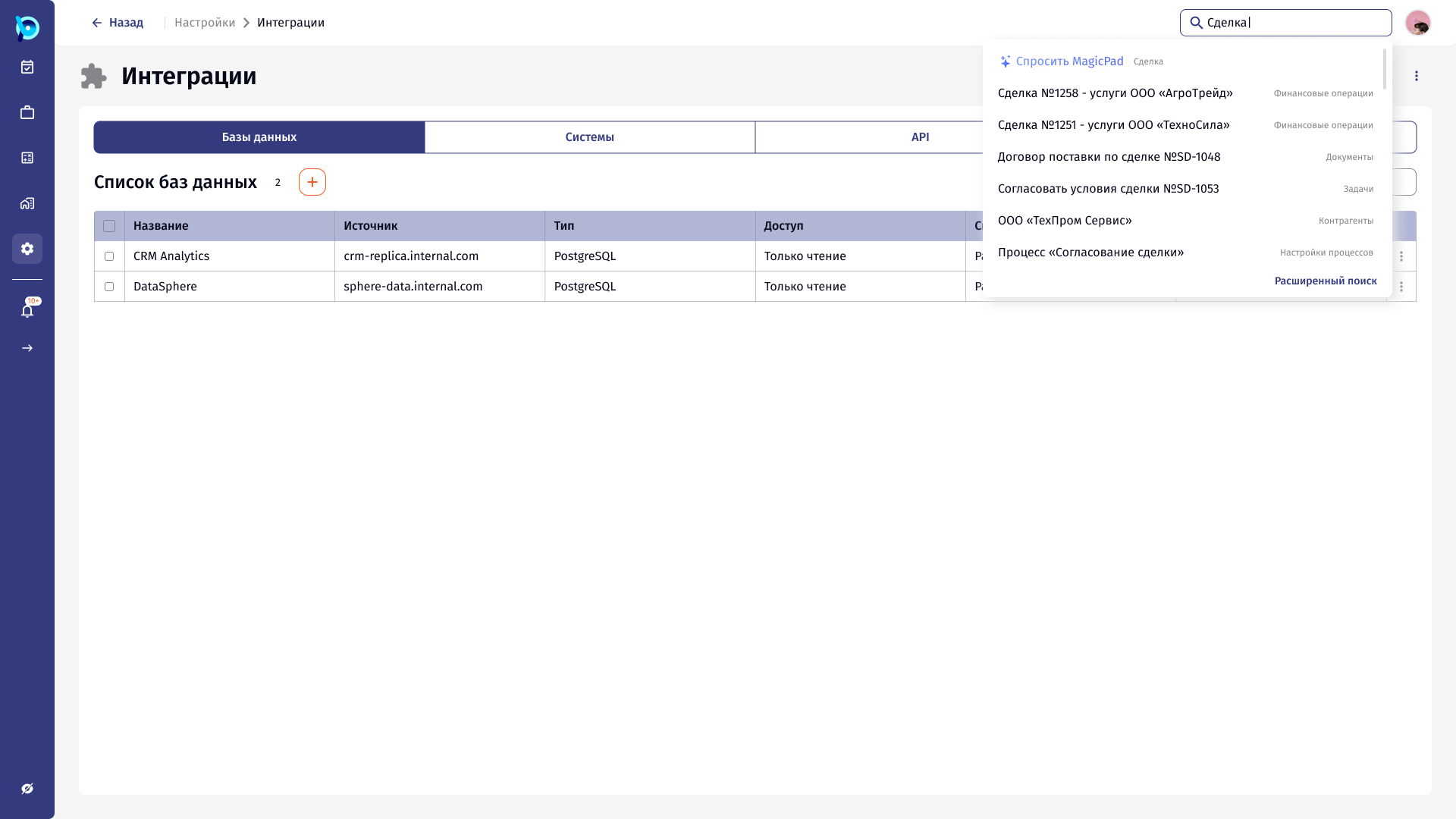
Lists of matches do not answer questions.
Across that many entity types, a flat list of matches is hard to scan, and a question gets no useful answer from it at all. When nothing matches, the user hits a dead end.
Search first, assistant when it helps.
Results are grouped and counted by section so the user can narrow down quickly. The assistant appears as a row at the top of results, as an inline answer when there are no matches, and as a summary on the full results page.
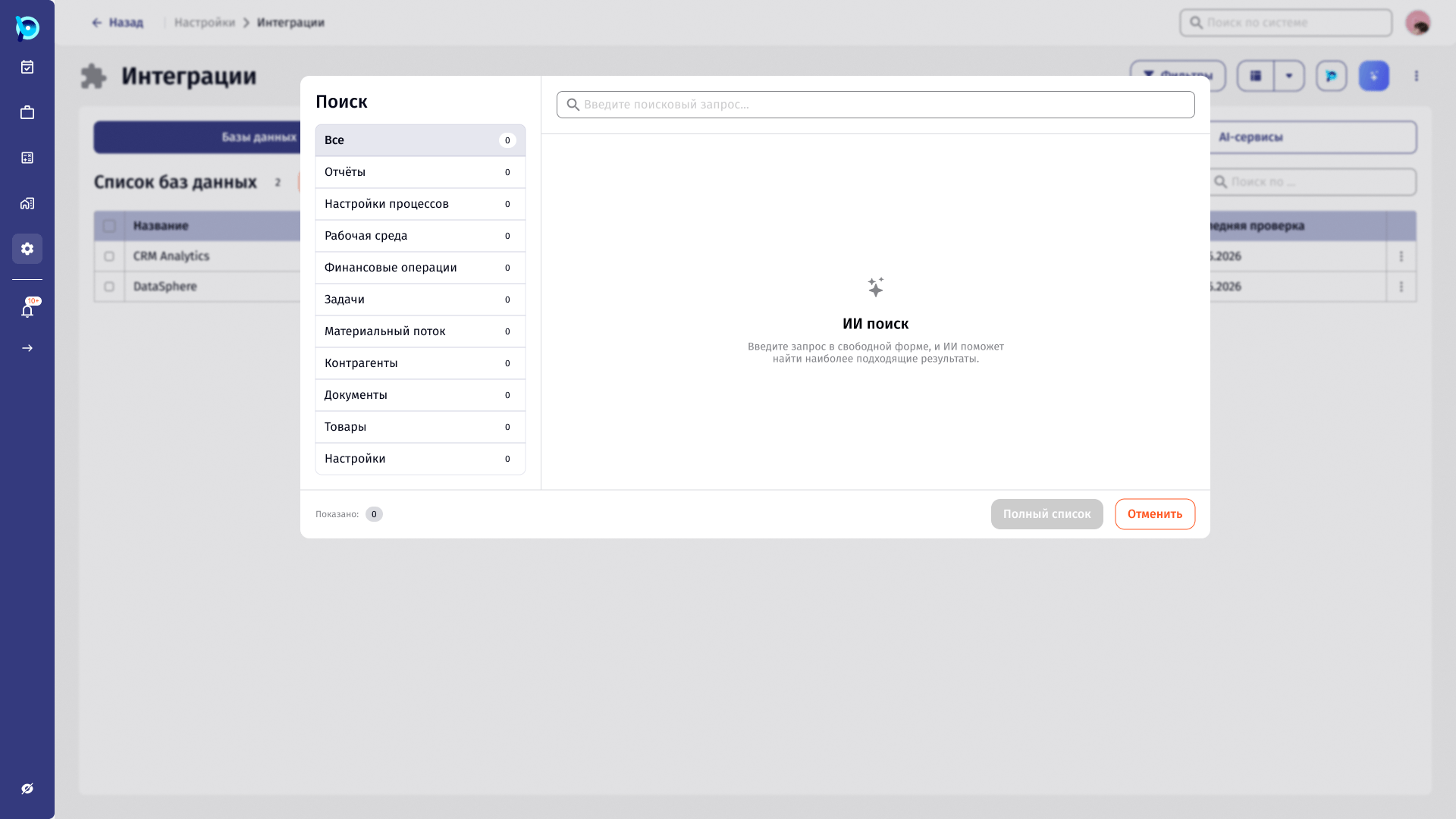
From a quick match to a summarised answer.
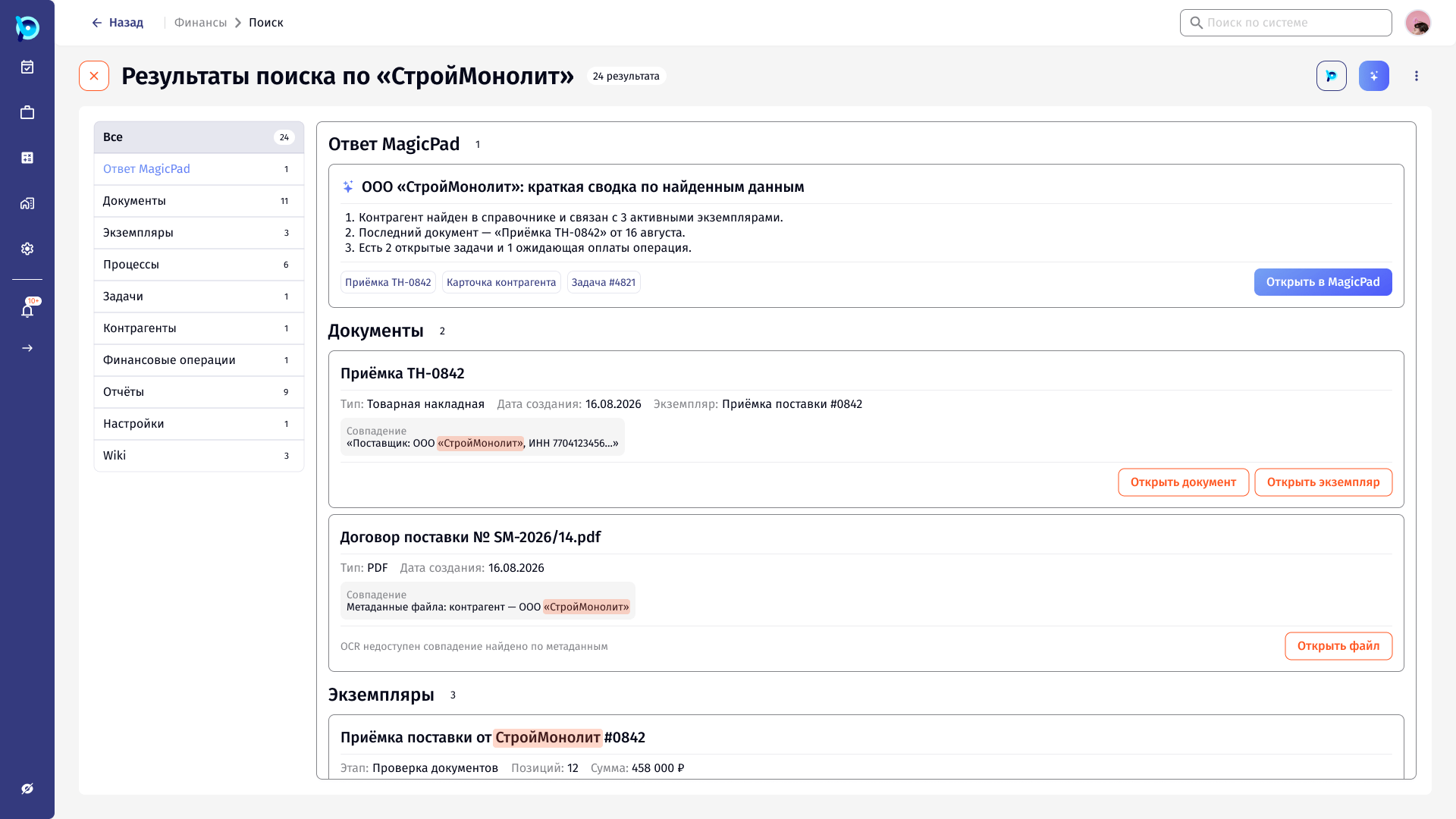
The full results page leads with a MagicPad summary of what was found about the query, with links to the source objects. Below, each result shows where the match was found, including file metadata when text recognition is not available.
Counts per section
AI summary first
Why it matched
Honest about limits
Key decisions
Every result says where it lives
Section labels and icons on each row.
Counts before clicks
Categories show how many matches they hold.
No dead ends
An empty search offers to ask MagicPad, and questions get an inline answer.
Escalation is one click
«Продолжить в MagicPad» and «Открыть в MagicPad» carry the query over.
Matches are explained
The matching fragment is highlighted, with its source.
What was designed
Figma screens for header search, the search dialog in two layouts with first-open, recent, results, no-results and question states, and a full results page with an AI summary. These screens sit on a page the file labels «Черновик» (draft).