(07)Desktop, AI & Data
CPQ
CPQ is where BusinessPad managers turn a client request into a ready quote: configure a made-to-order product, price it, and keep the whole order in one place.
- Company
- AVK Consulting
- Role
- Product Designer
- Year
- 2023–2025
- Type
- B2B SaaS · Enterprise · Desktop
01Overview
Companies that make products to order, like protective workwear, can’t pick a price from a list. Each request needs the product defined first, then costed, then quoted. The name describes the three steps: Configure, Price, Quote.
02My role
Product Designer
- Catalog management: import and file validation, own, connected and shared catalogs, product cards and price history
- The product configurator, including a suit with independently configurable jacket and trousers
- Order cards, lists, sorting, filtering and P1–P4 priority logic
- Navigation for dense screens: multi-panel layouts and vertical tabs
- Reusable components, documented UX decisions and handoff
03The challenge
Products have many parts and options, prices depend on every choice, and one order can hold many items at different stages. Product data comes from several catalogs. The goal was to simplify configuration while still supporting flexible structures, pricing and order management.
- 01Options that open further options
- 02Prices that change with every choice
- 03Catalog data from files, APIs and 1C
04Approach
4.1
Configure, then price, then quote
CPQ is the BusinessPad workspace for made-to-order products. A manager defines the product, sees the price change with each choice, and keeps the request, the goods and the client conversation in one order.
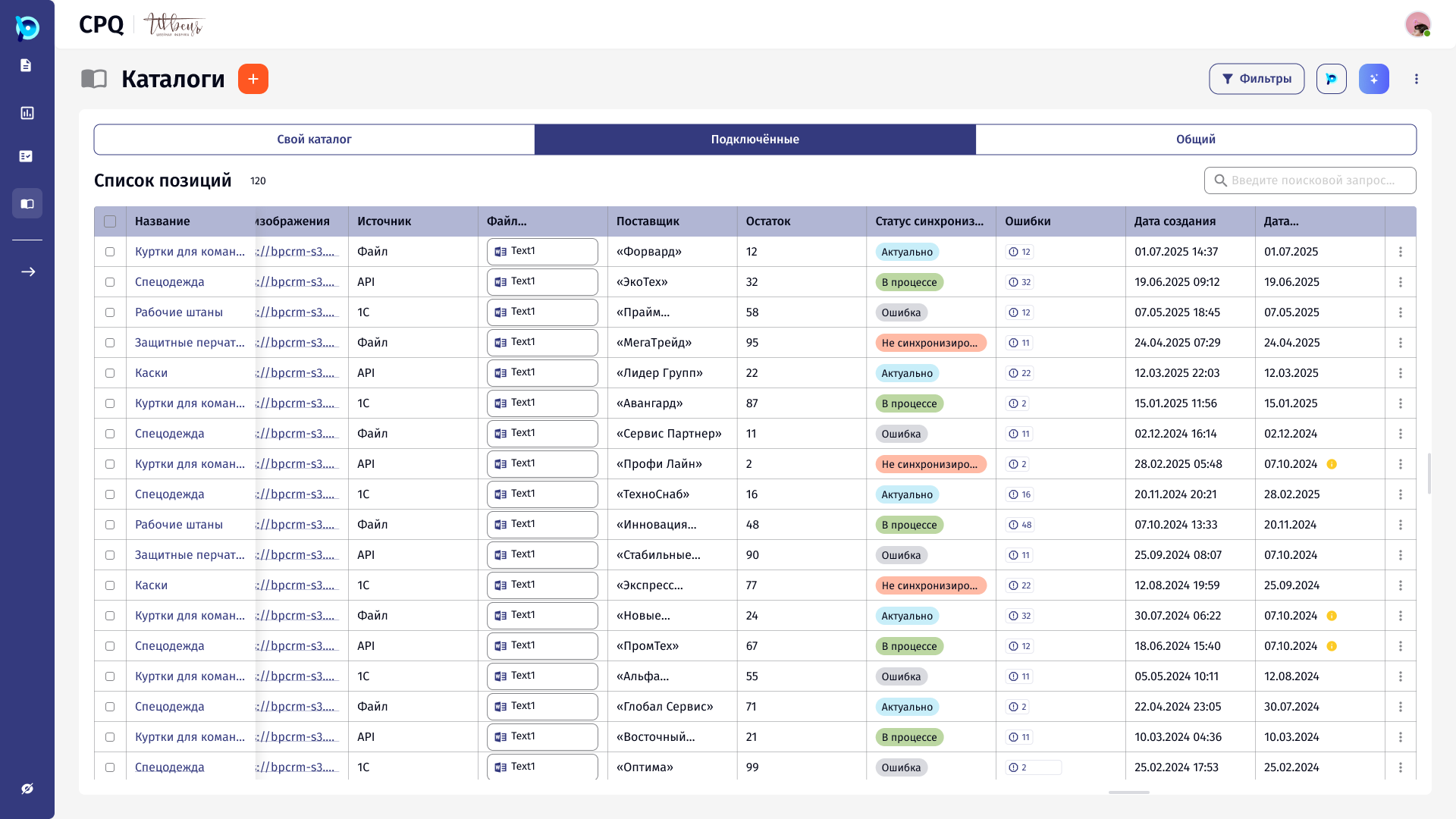
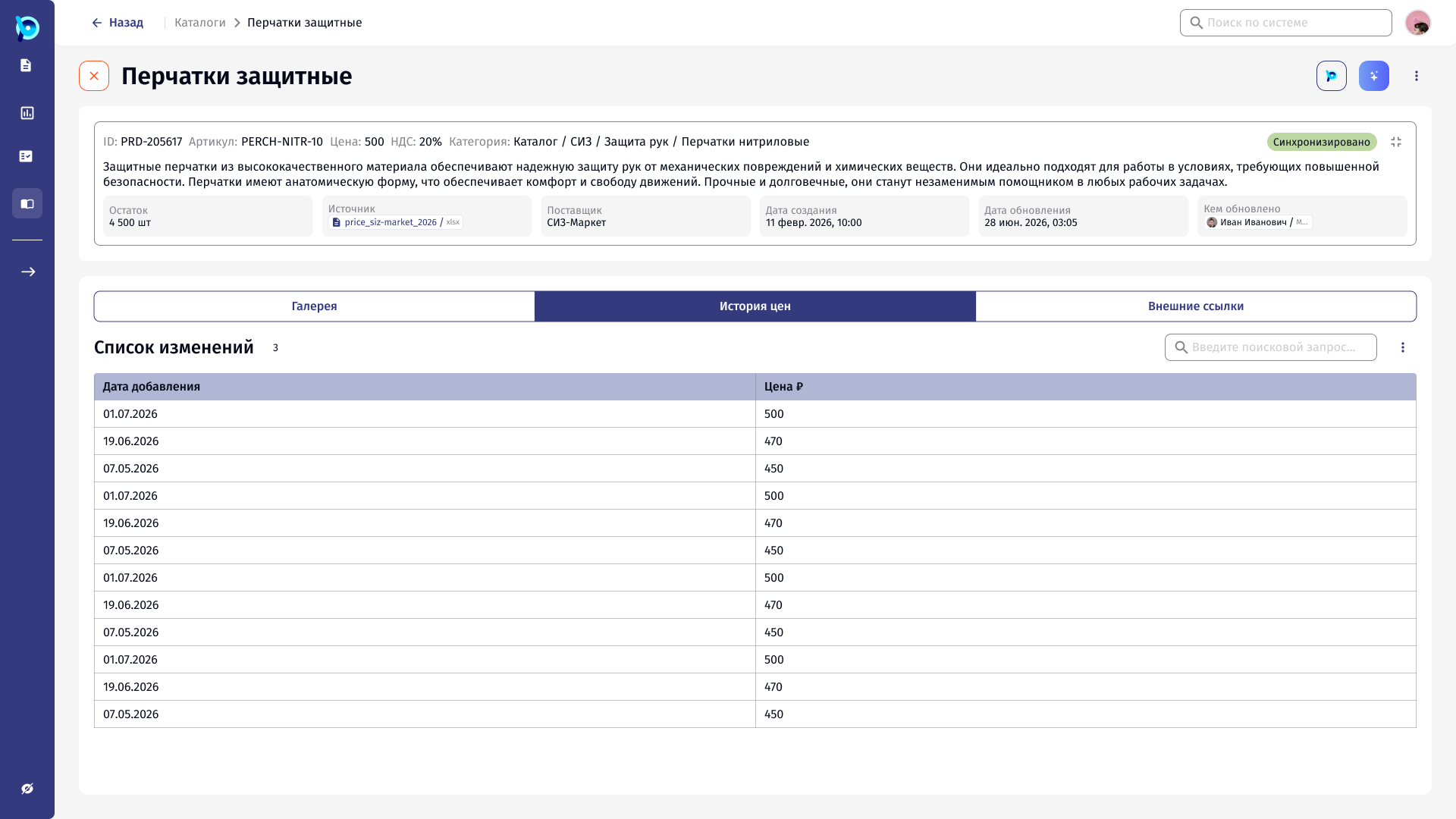
Behind that: catalogs that arrive from a file, an API or 1C, with validation when a file is wrong; own, connected and shared catalogs; product cards with price history; and an assistant that can fill fields, always with a source a person can check.
05Key flows
5.1
Configuring a product
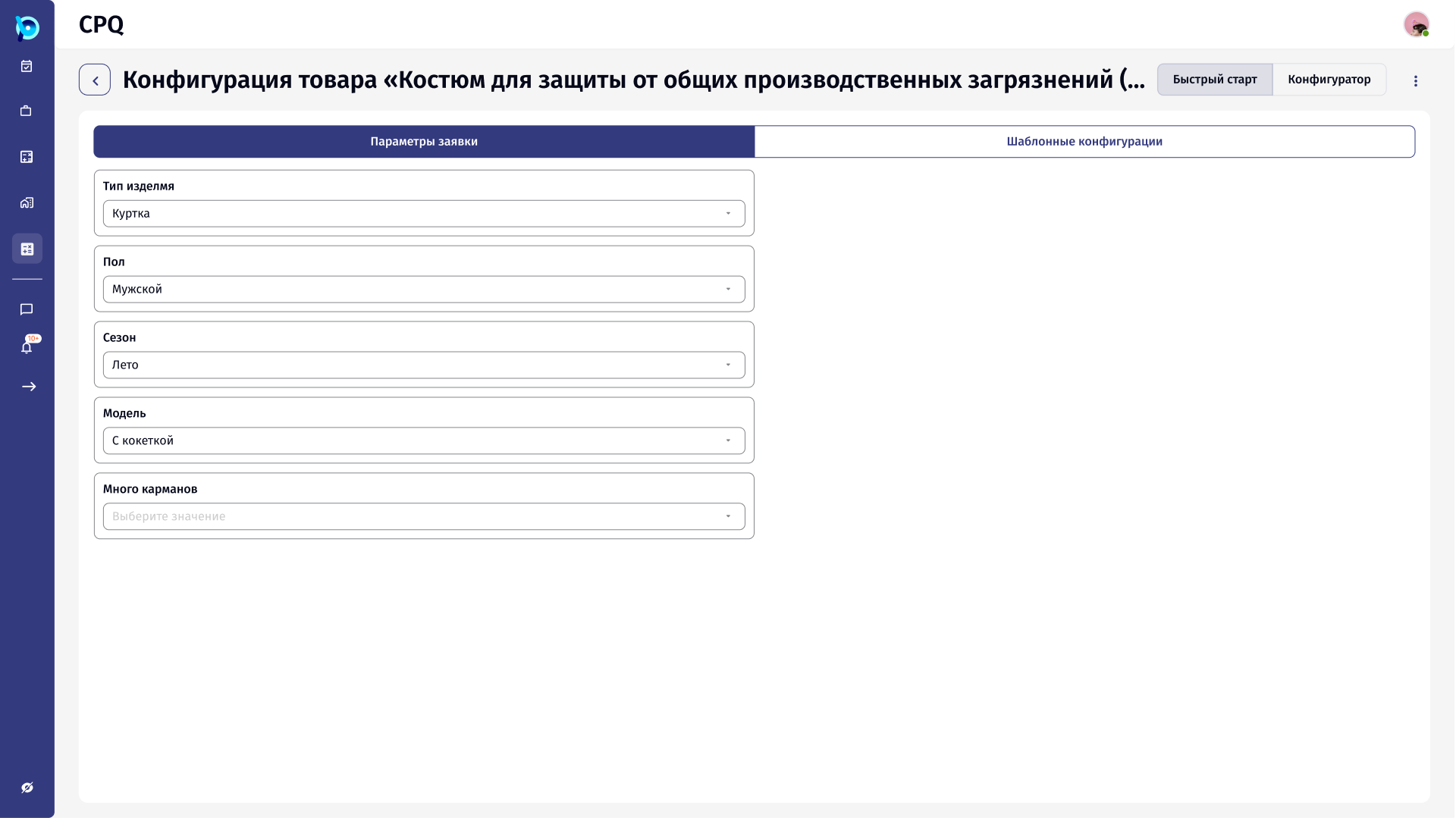
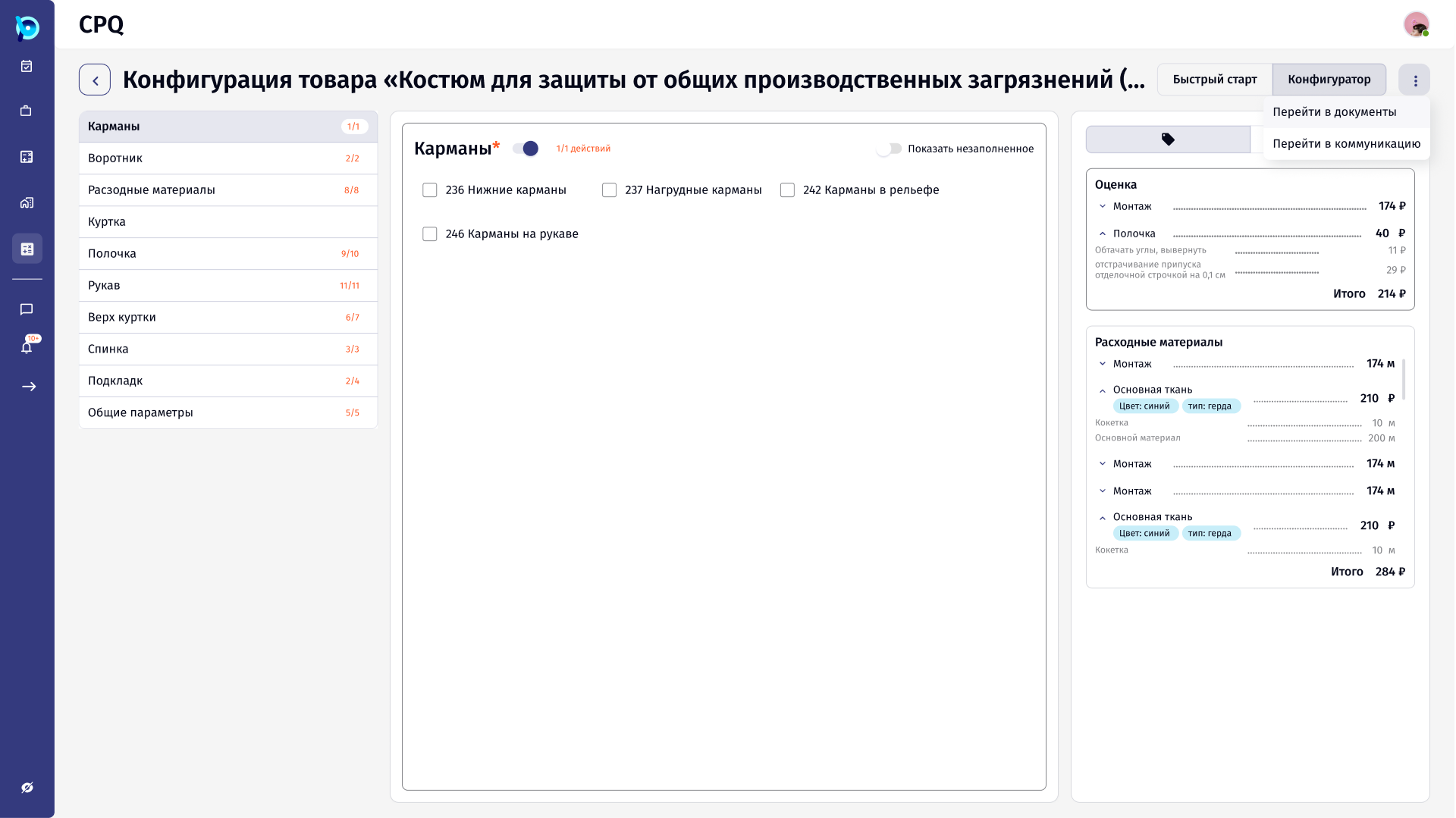
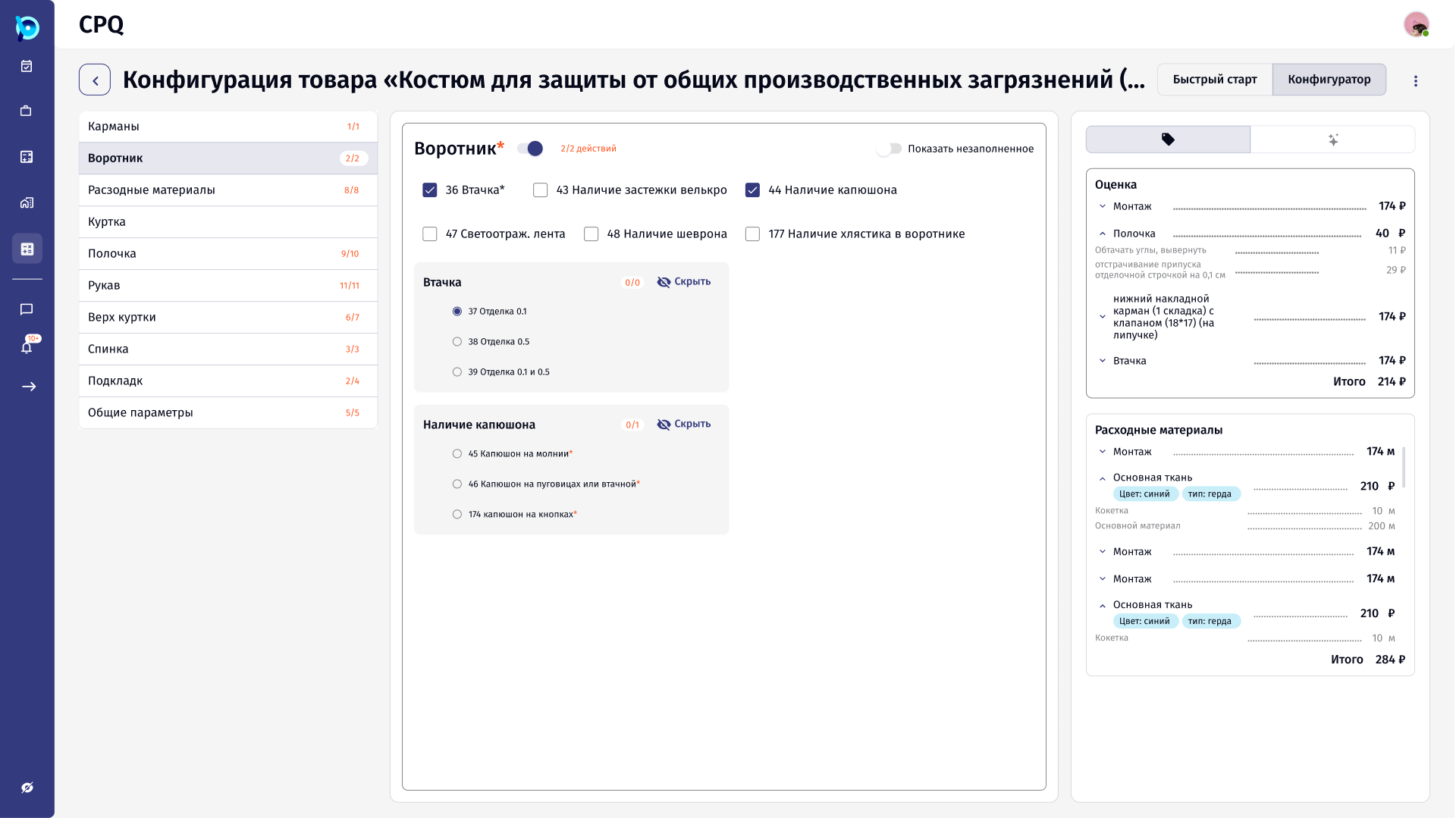
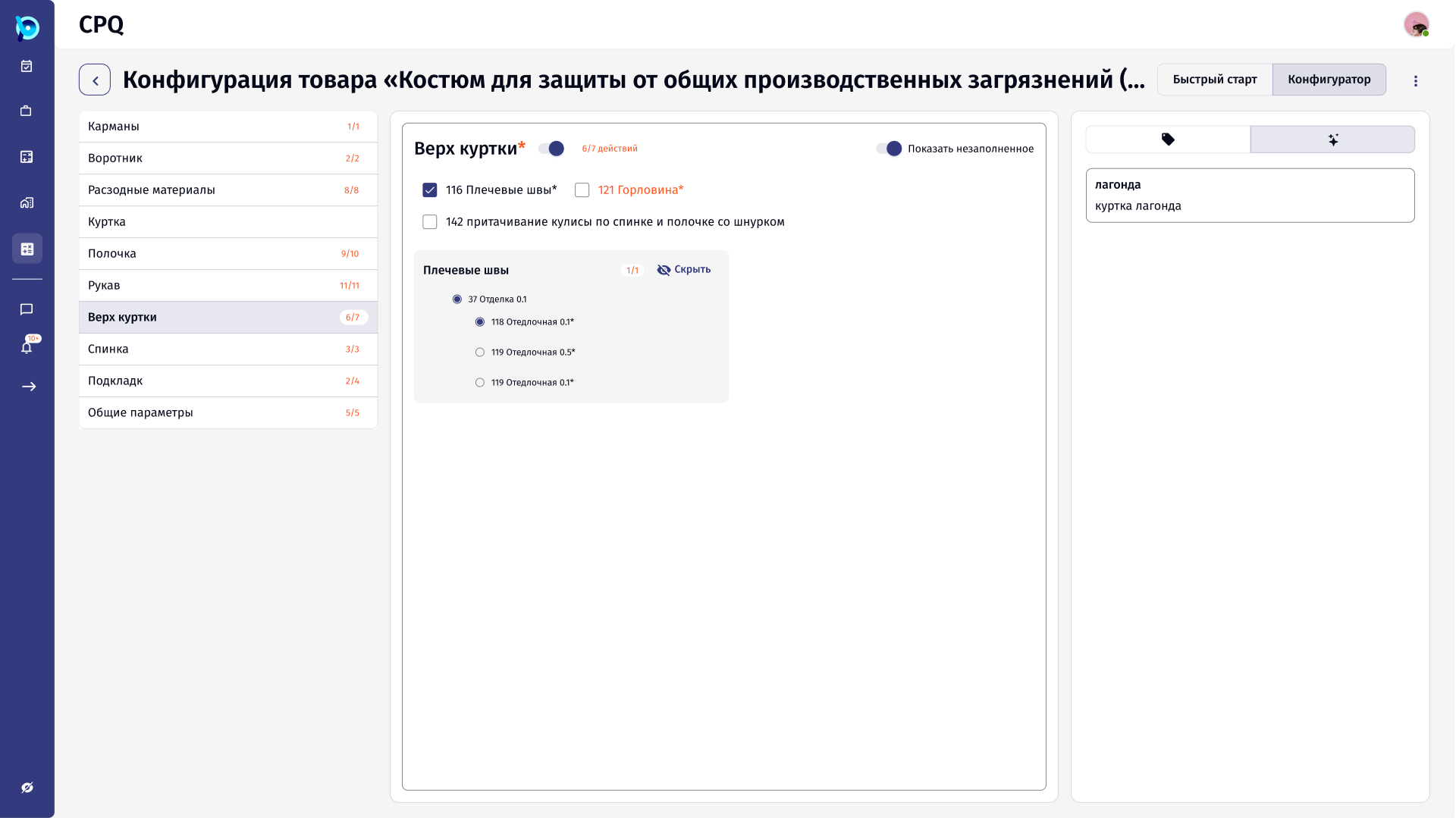
The configurator splits a product into sections. Each section shows its progress, options can open further options, and the estimate on the right recalculates with every choice.
- 1Quick start from the request
- 2Or start from a template
- 3Go section by section
- 4Fix what’s still required
5.2
Managing the order
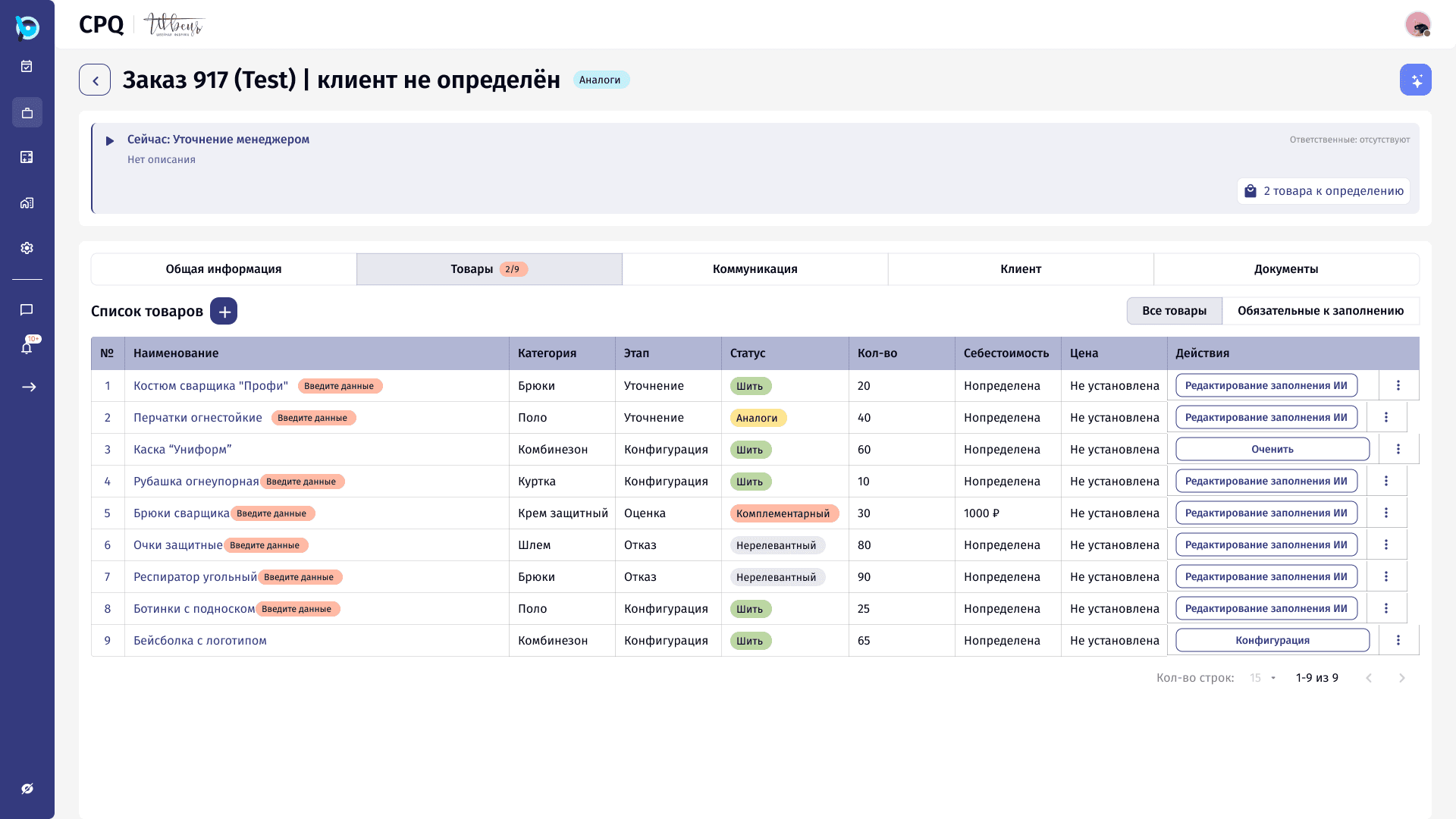
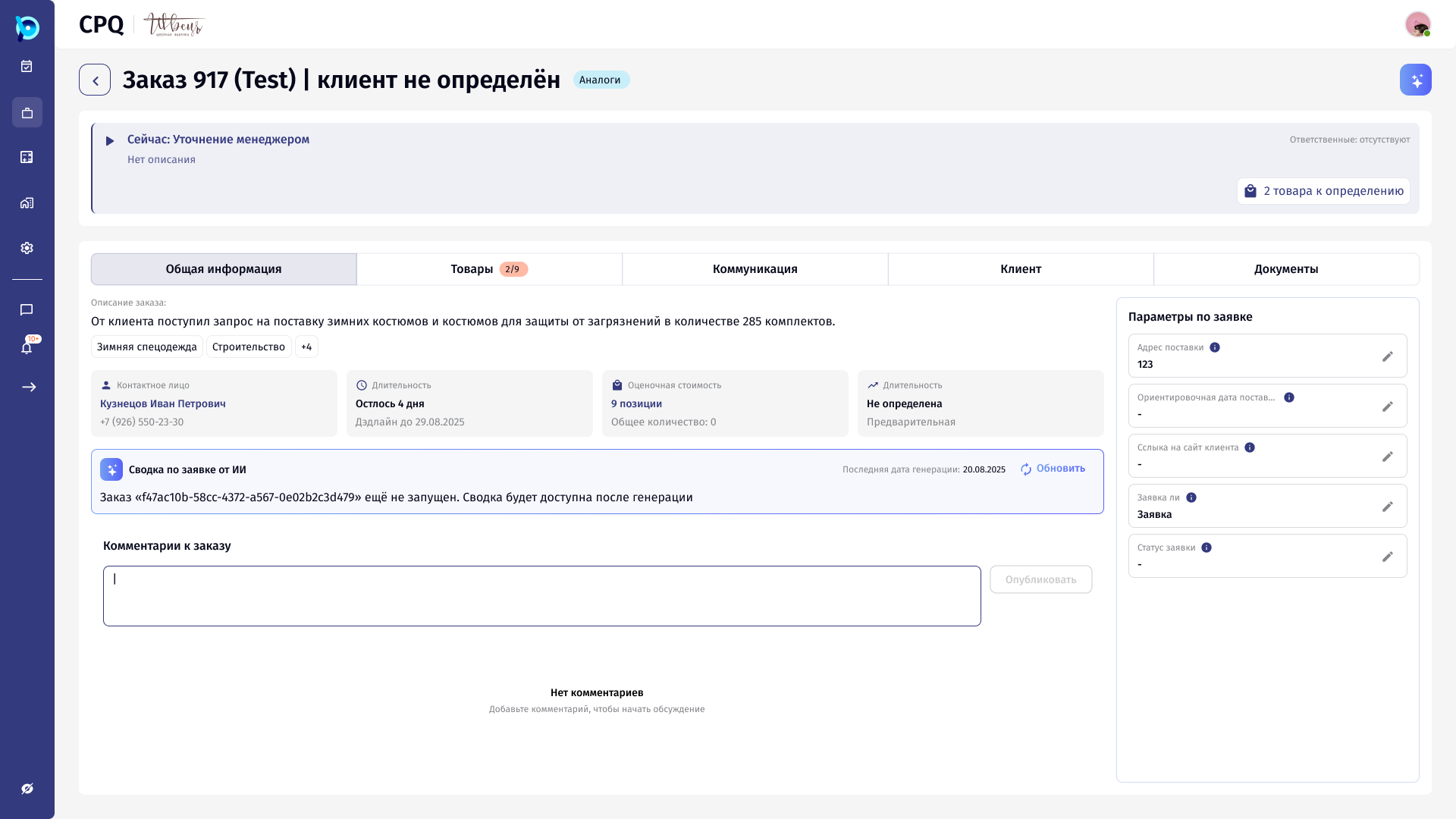
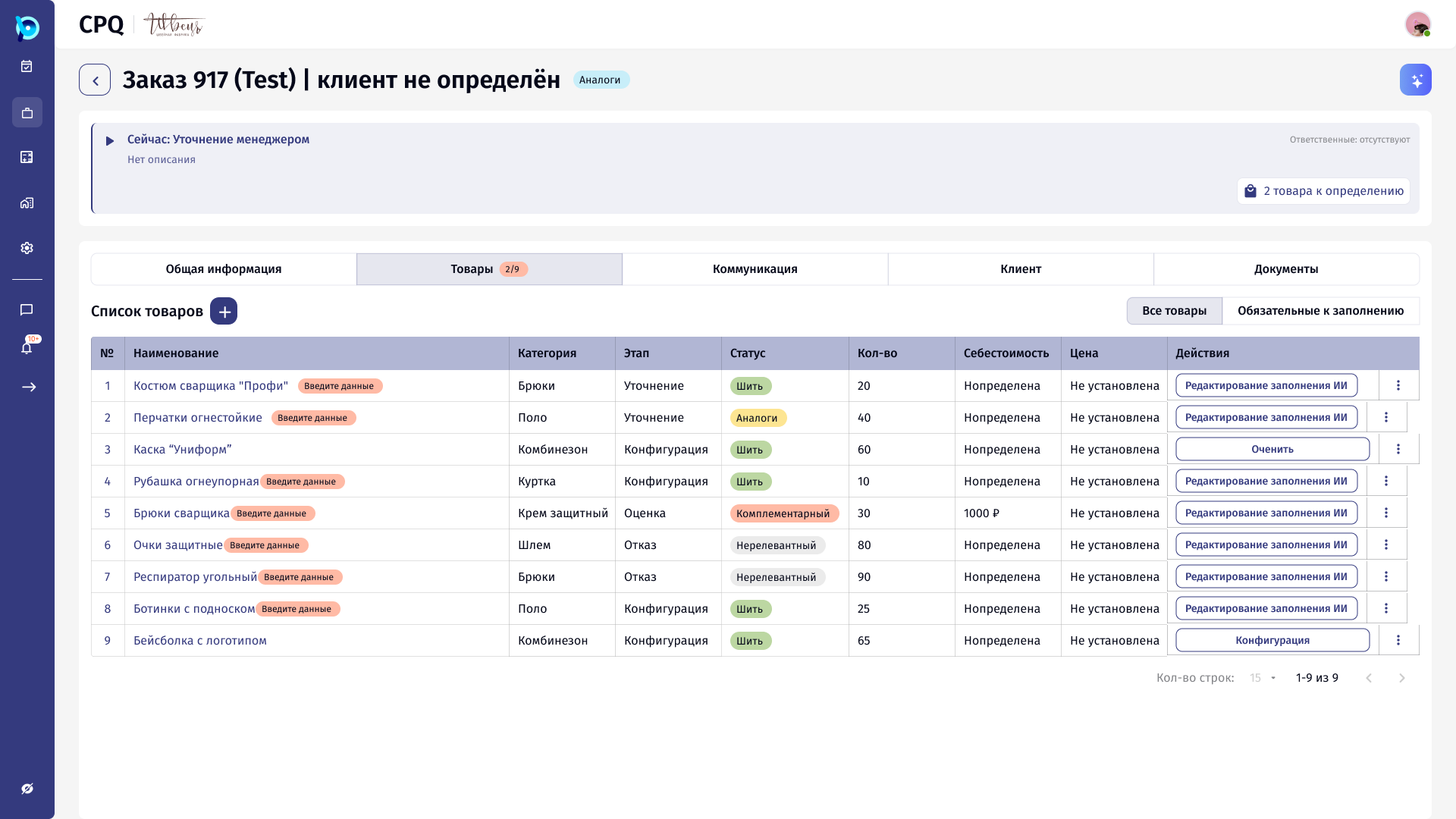
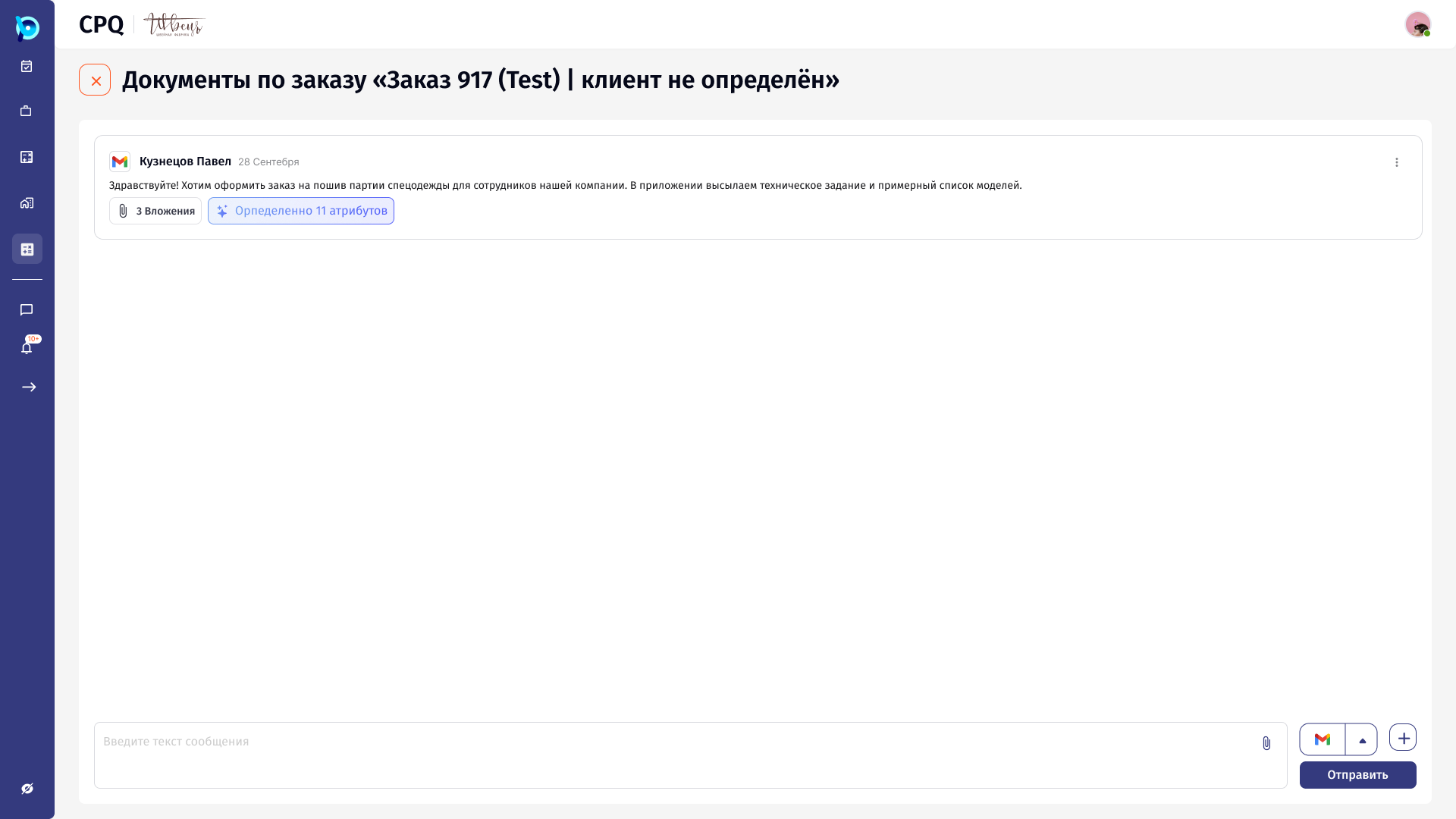
Everything about a request lives in the order: general information with an AI summary, the goods at their own stages, and client communication with documents.
5.3
Adding a catalog
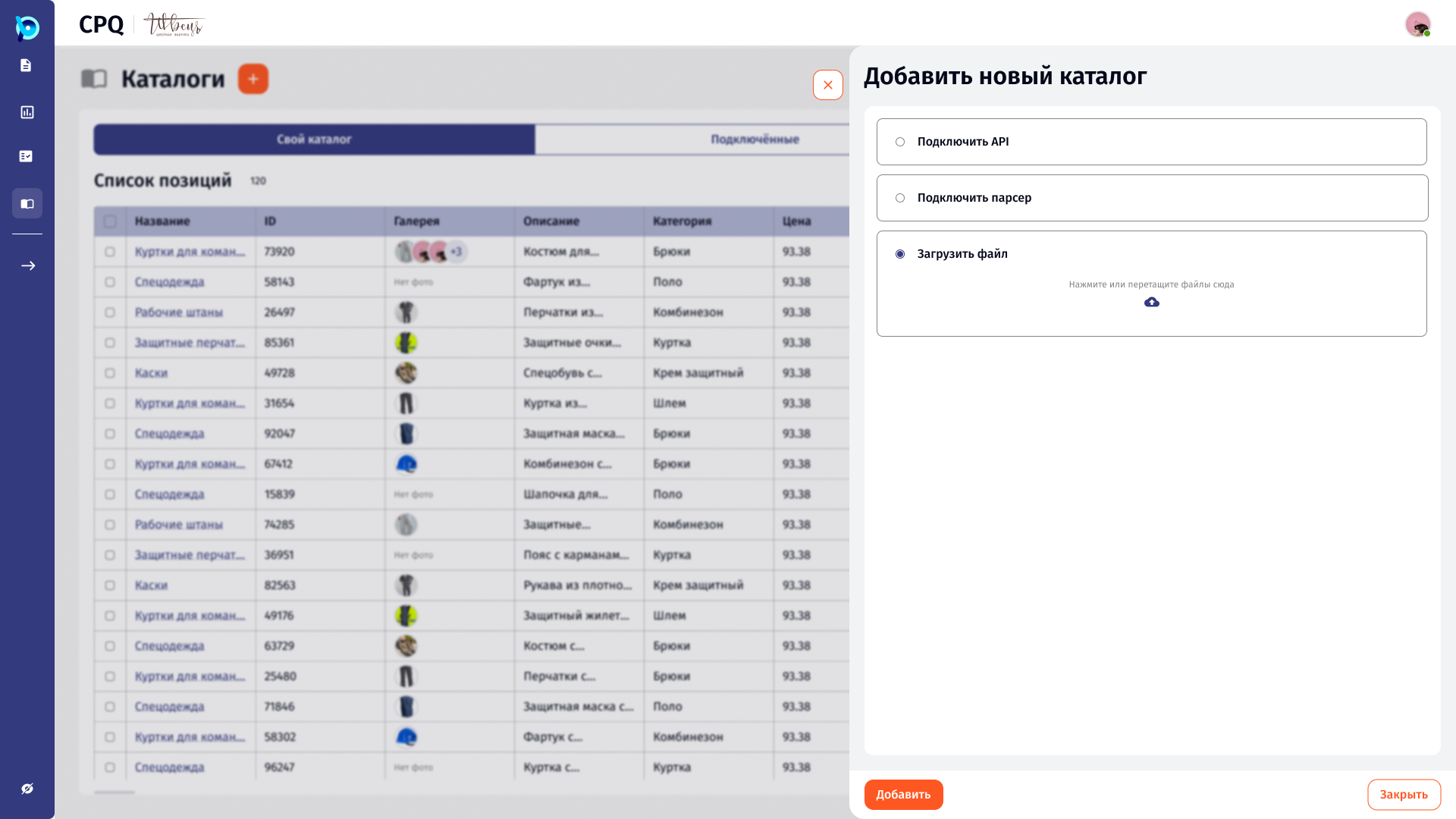
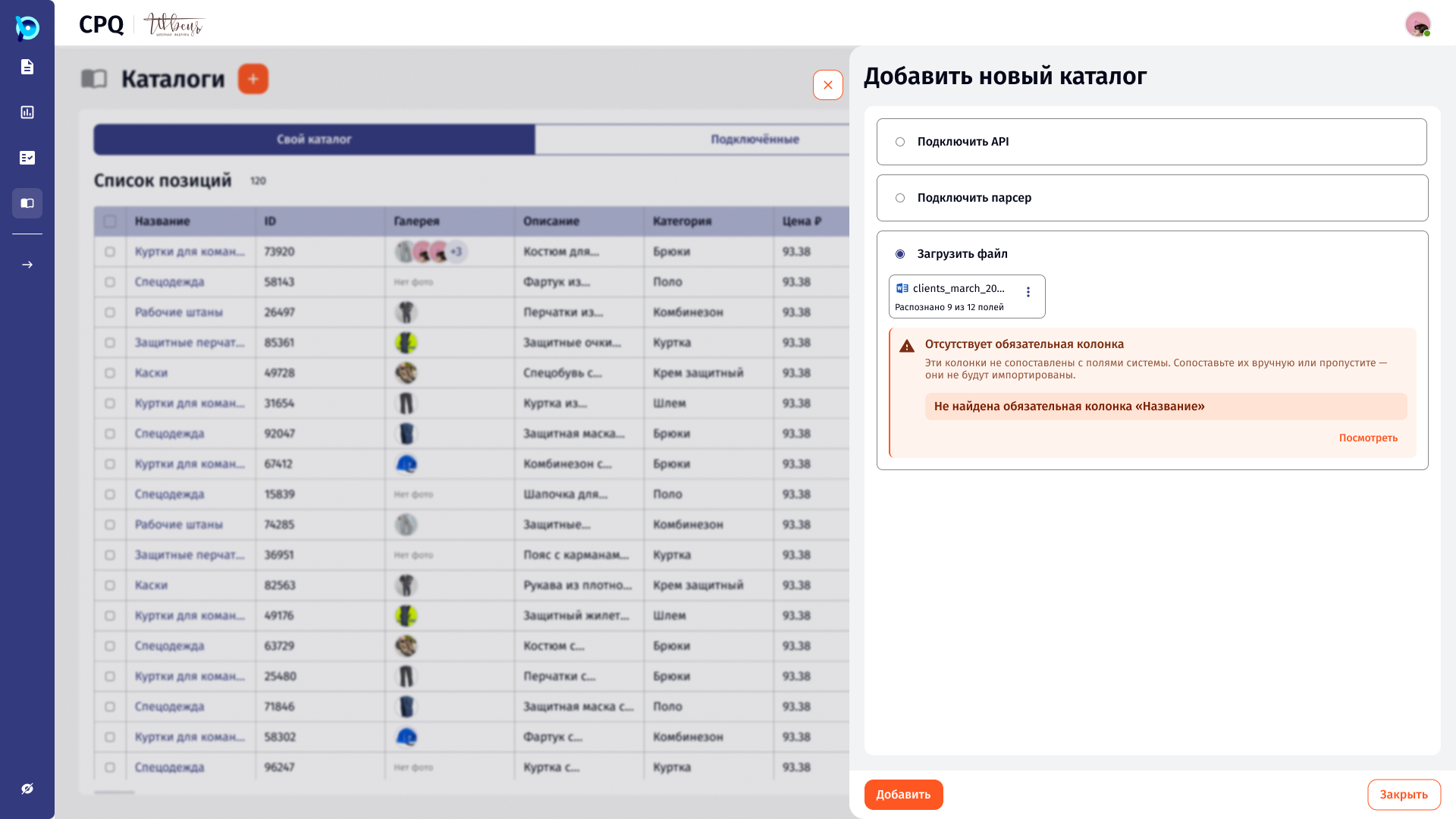
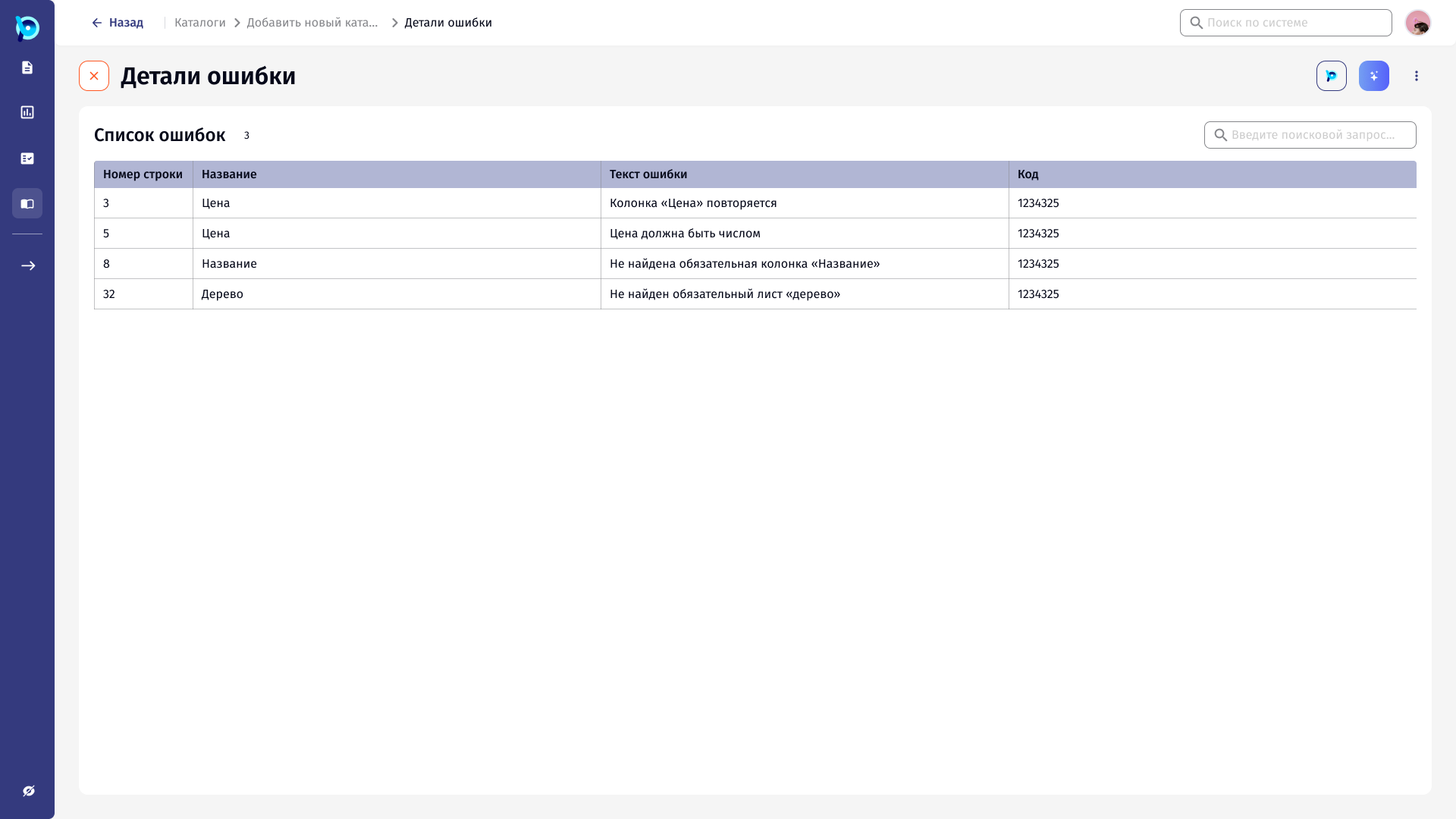
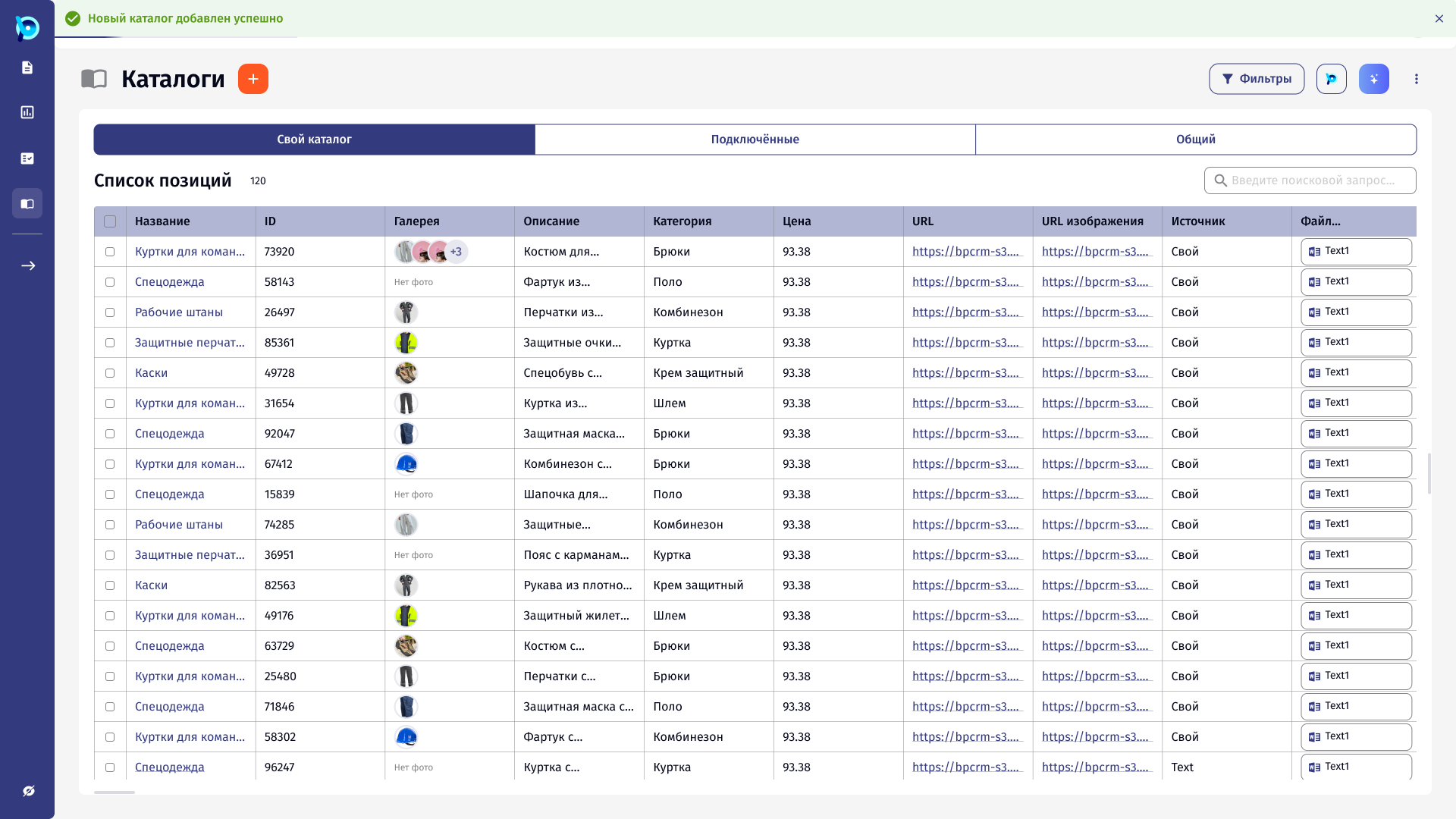
A catalog can come from an API, a parser or a file. Files are validated on upload, and missing columns are explained with row-level error details.
- 1Choose a source
- 2Upload a file
- 3See what’s missing
- 4Open error details
- 5Catalog added
 Open full size
 Open full size
 Open full size
 Open full size
5.4
Working with catalogs and products
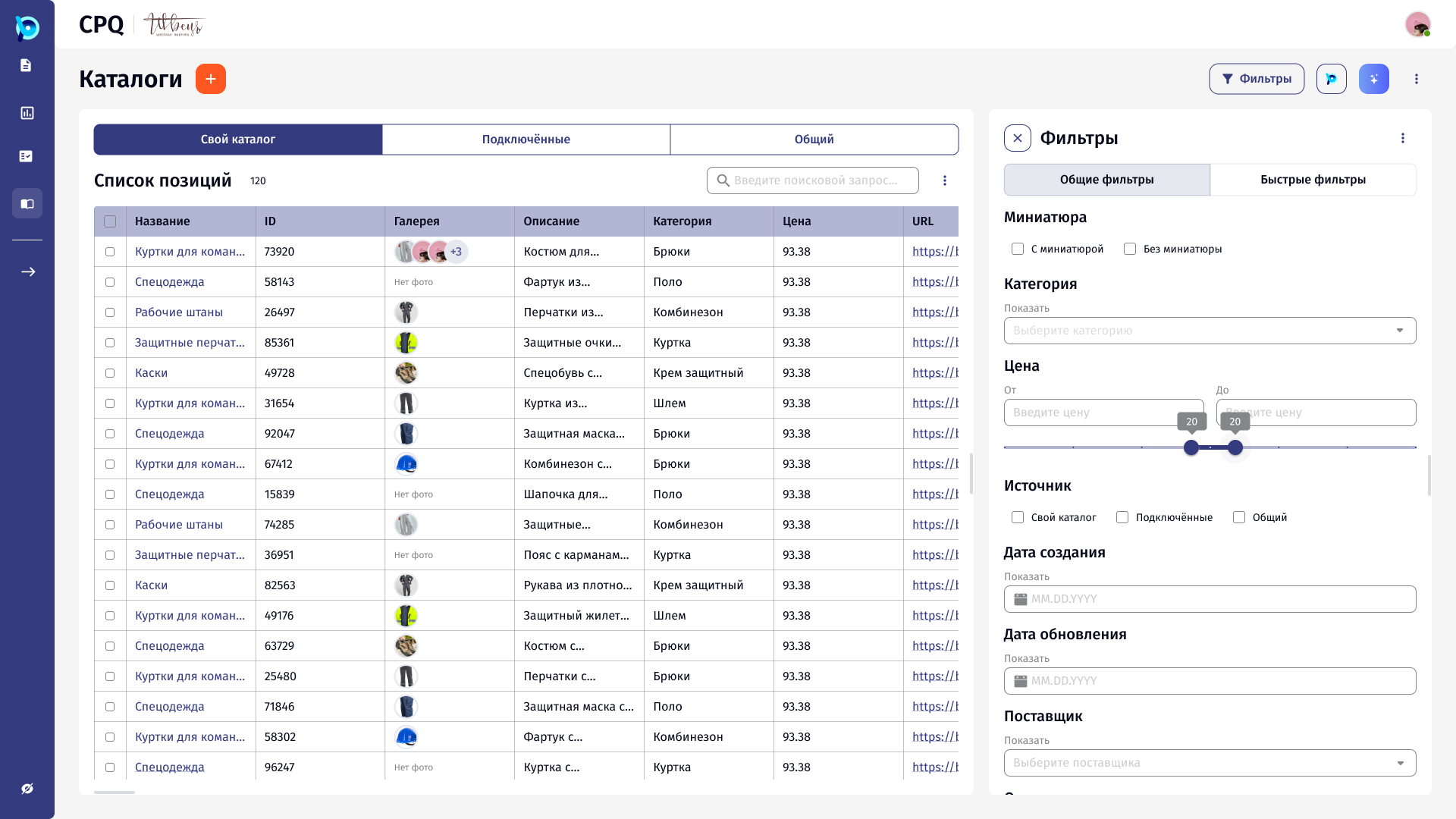
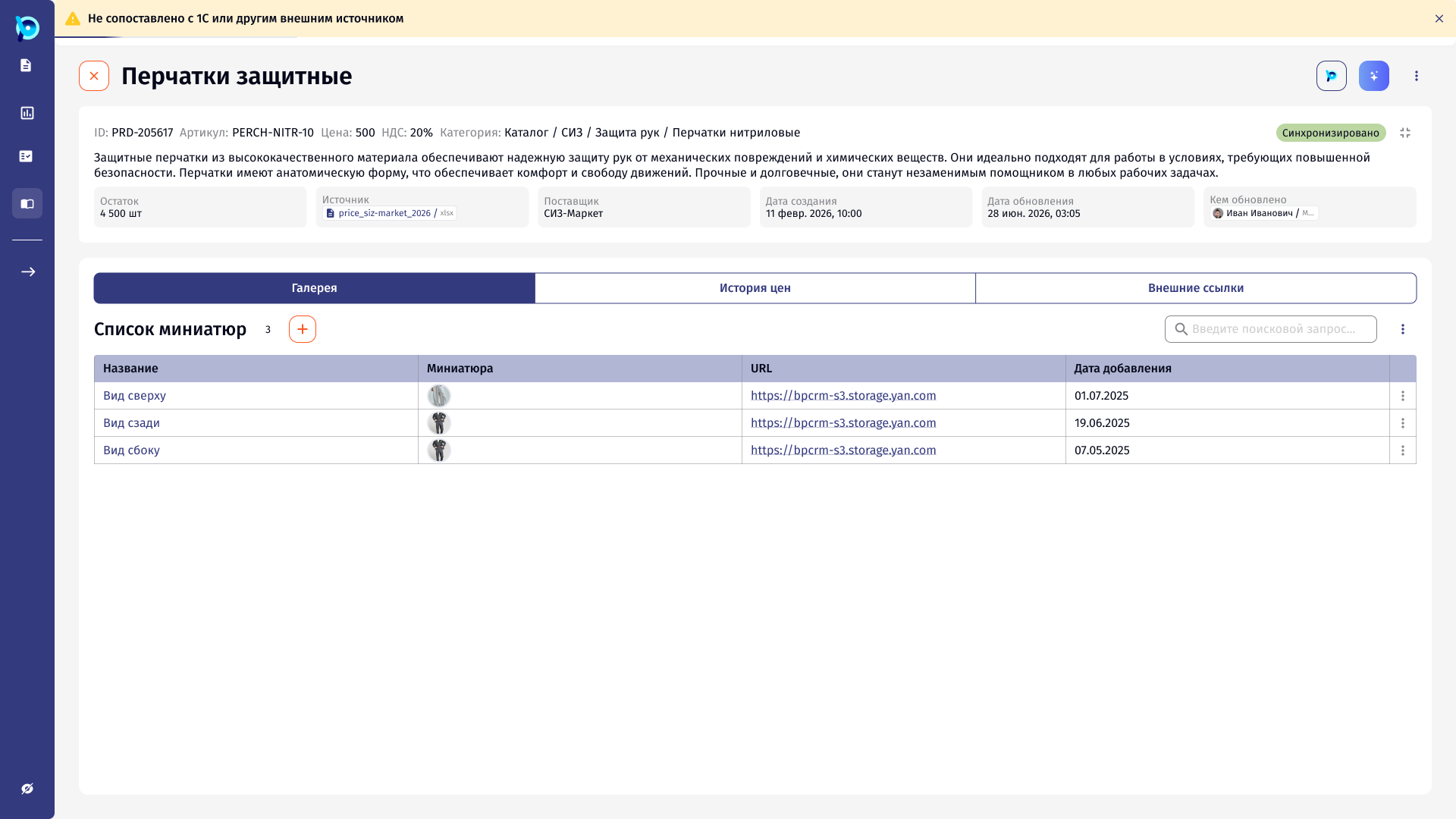
Own, connected and shared catalogs sit in tabs with filters beside the table. A product card holds its gallery, price history and external links.
 Open full size
 Open full size
 Open full size
 Open full size
06Design decisions
Show progress, not just fields
Every configurator section shows how much of it is done.
Keep the price visible
The estimate sits next to the form and changes as options change.
Panels beside the list
Adding, filtering and editing open next to the content.
AI suggests, people decide
Where the assistant fills data, the result shows its source and can be checked.
07Outcome
CPQ became one workspace for the whole path from request to quote, built on the same BusinessPad components, with the price always visible while the product is being defined.